Access FSPROD menu. Select GRCC Custom, Reports, BCO Budget Report.
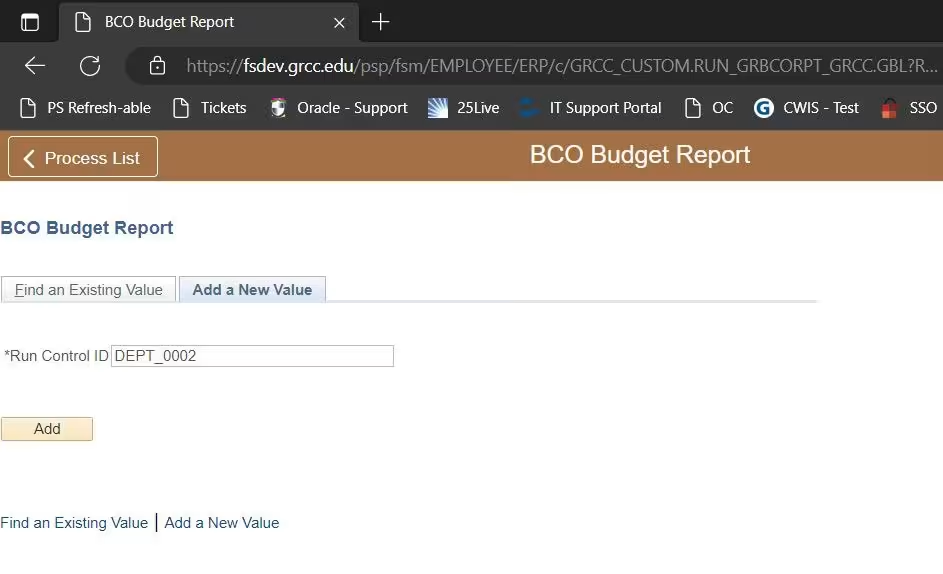
- Select Add a New Value and add a Run Control ID. This can be anything you'd like, but it cannot contain spaces. You have several options with this report:
- If you enter a department or project ID and no accounts, you will receive summary data for all accounts in in that unit.
If you enter a department or project ID along with an account range, you will receive all detail for selected accounts. This detail will include journal detail, Accounts Payable and purchase order information in one consolidated report.
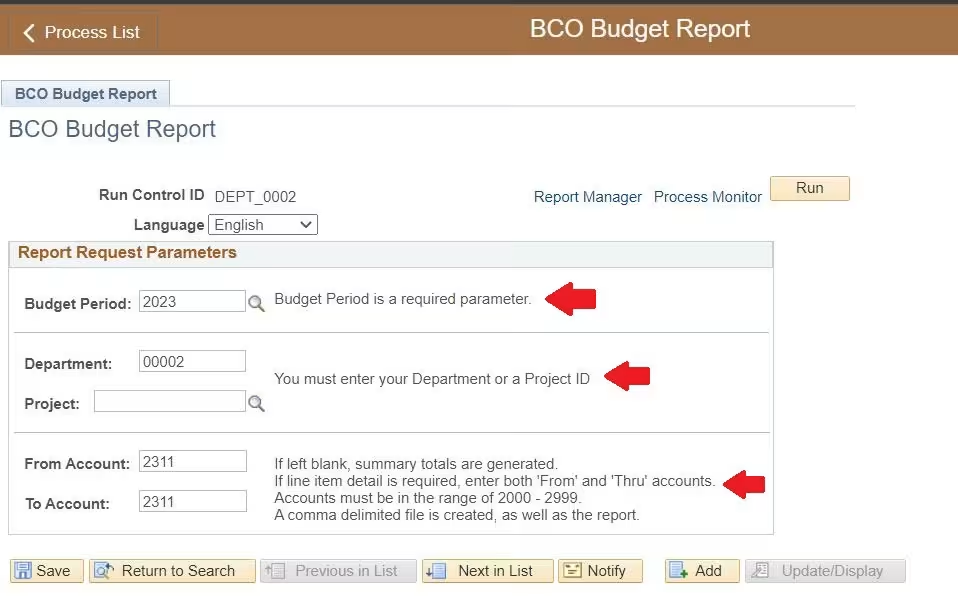
- Fill in your selections (web and PDF or CSV) and select save. This will save the report parameters you entered so the next time you run this report you can select your saved run control ID and get these same parameters.
- Select Ok to run the report.
- If you have access to the department on the R drive, you do not need to wait for the process to complete. The report will appear in that drive automatically with a filename that begins "BCO_Budget."
- If you do not have access to the R drive, you can select Refresh until the status changes from Queued to Success.
Select Details.
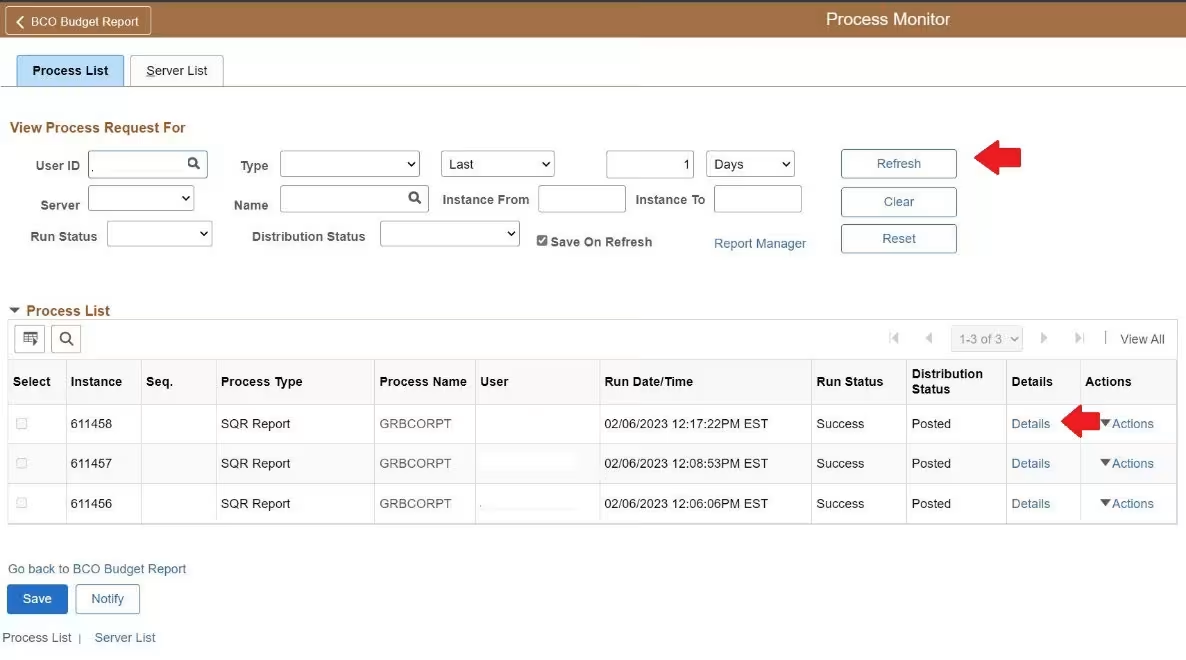
- Select View Log/Trace Link.
- Select the file labeled "GRBCORPT_[numbers].pdf"